
Guide
How to Use a Golf Simulator: Tips, Settings, Stats and Maintenance
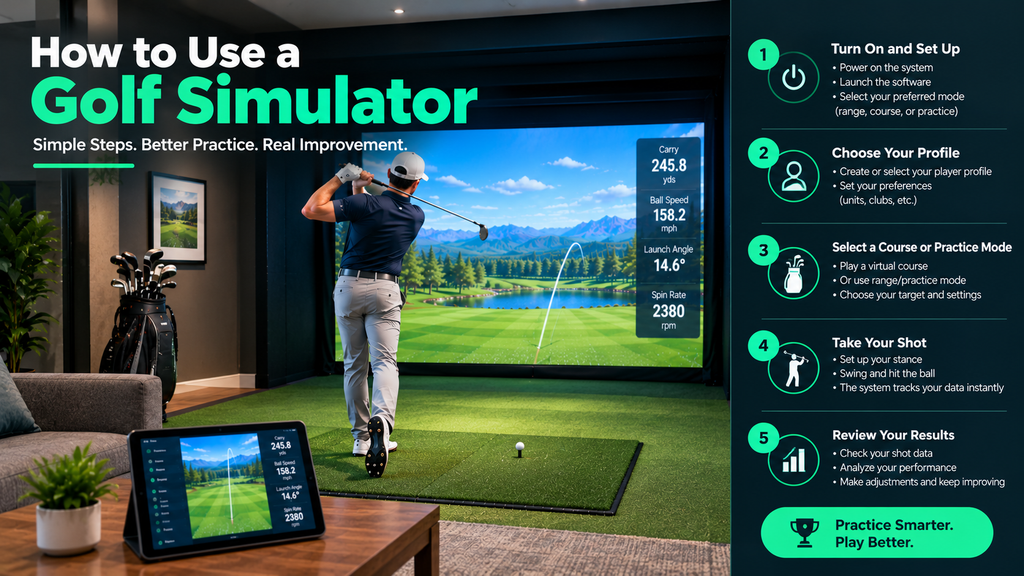
How do you use a golf simulator? Tee up on the mat, choose a club and a mode in the software (range, course or game), and hit into the screen. The launch monitor measures the shot and the software shows where it went. Getting good results takes a little more: starting things up in the right order, checking the launch monitor is aligned, choosing sensible settings, and knowing how to read the numbers.
This guide walks you through your first session step by step, then shows you how to align the launch monitor, set up a round, read your stats to understand each shot, play with friends, and keep everything working. It’s part of our guide to improving your game with a golf simulator.
Key Takeaways
- Start up in order: launch monitor, computer or tablet, projector, then the software.
- Check alignment and your numbers with a club you know before trusting the results.
- Choose the right mode for your goal: practice range, course play, games or skills tests.
- Settings such as altitude, wind, green speed and gimmes change results; set them deliberately.
- Read the result first, then the cause: start direction, curve, strike, then height and spin.
How to Use a Golf Simulator: Your First Session, Step by Step
Time: 15–20 minutes before you start playing properly. You’ll need: clean balls of the type your launch monitor recommends, tees, and a club you know well, such as a 7-iron.
- Turn things on in order. Launch monitor first (and check it’s charged), then the PC or tablet, then the projector, and open the software last. Starting the software before the launch monitor is on is a common reason it can’t find the device.
- Check the connection. The launch monitor’s app or the simulator software should show it as connected and ready, usually with a green light or “ready” status. If not, see the troubleshooting section below.
- Set up your player profile. Enter your name, handedness and, if the software asks, your handicap and usual tees. Choose yards or metres.
- Check the settings (see below): altitude, wind off, normal fairway and green firmness. Unusual settings left by someone else are a common reason distances look wrong.
- Warm up with 10–15 easy wedge swings. Cold muscles and full drivers are a bad mix, especially in a cold garage.
- Do a calibration check. Open the driving range, select your 7-iron in the software, tee up in the marked hitting zone and hit 10 normal shots. Compare the average carry with what you hit outdoors.
- Check the direction. Aim at the centre of the screen. If good shots consistently show starting several degrees left or right, re-align the launch monitor (next section).
- Choose a mode for the rest of the session: range for practice, a course for a round, or a game.
Check: each shot appears within a second or two, the 7-iron carry is close to your normal distance, and straight shots look straight. Now you’re ready to play.
At a venue, staff usually set this up for you; see playing at a golf simulator venue.
How to Align Your Launch Monitor
If the launch monitor isn’t pointed at the same target as you, every shot reads left or right. Re-align whenever it’s moved or knocked.
- Find the alignment routine in your launch monitor’s app; most have one, and the manual explains it. Follow it first.
- If there’s no routine, lay an alignment stick on the mat from the hitting zone to the centre of the screen.
- Line the launch monitor up with the stick: parallel to it for units beside the ball, directly behind it along the line for units behind the ball.
- Check the distance from the unit to the ball matches the manual exactly.
- Level the unit if the manual asks for it.
- Test with 10 wedges aimed at the screen centre. The average start direction should be close to zero.
Not sure if it’s you or the launch monitor? Lay the alignment stick on the ground, aim at the screen centre and hit 10 easy wedges. If balls visibly fly straight at the centre but the screen shows them starting left or right, it’s alignment. If they fly offline in the room too, it’s your swing.
Simulator Modes, Rounds and Settings
Once the launch monitor is aligned, the next step is choosing what to play and how. These are the modes, round setup and settings most programs share.
Simulator modes explained
| Mode | Use it for |
|---|---|
| Driving range / practice | Working on swing and data, club by club |
| Course play | Full or partial rounds on virtual courses |
| Skills tests and challenges | Measuring progress, pressure practice |
| Games | Closest-to-the-pin, long drive, target games; fun with groups |
| Multisport (some systems) | Other sports and party games |
How to set up a round on a golf simulator
- Choose the course and number of holes. Nine holes takes about half the time; start with nine until you know how long rounds take.
- Choose tees that match your normal game.
- Set conditions: wind off or light, normal firmness, and green speed similar to your home course.
- Choose putting: full putting if you want to practise it; auto-putt or a gimme distance to speed things up.
- Decide on mulligans for casual rounds.
- Play each shot as you would outdoors: pick a target, go through your routine, then hit.
Golf simulator settings worth checking
| Setting | What it does | Suggested starting point |
|---|---|---|
| Altitude and temperature | Changes how far the ball flies | Match your local course |
| Wind | Adds realism and difficulty | Off for practice; on for rounds if you like |
| Fairway and green firmness | Changes roll and how shots stop | Normal or medium |
| Green speed | How fast putts roll | Similar to your home course |
| Putting mode / gimmes | Auto-putt or concede short putts | Gimmes for social rounds; off to practise putting |
| Mulligans and difficulty | Allows replays; changes how forgiving the game is | On for beginners and parties |
Names and options vary between programs; see golf simulator software.
How to Read Your Golf Simulator Stats
After each shot, read the numbers in this order. It turns a list of figures into an answer to “what happened, and why?”
- Result: carry, total and offline distance. Was it short, long, left or right?
- Start direction: launch direction shows where the ball started. This is mostly decided by the clubface at impact.
- Curve: spin axis (or side spin) shows how much it curved. On units with club data, compare face angle with club path: a face open to the path curves the ball right for a right-hander (a fade or slice); closed curves it left.
- Strike quality: smash factor (ball speed ÷ club speed) shows how centred the strike was. A drop from your usual number means an off-centre hit.
- Height and distance: launch angle and spin rate. Too much spin balloons the ball and costs distance; too little makes it fall out of the sky.
Look at averages across 5–10 shots rather than one shot. Our accuracy and realism guide explains each number in more depth.
Can golf simulators detect a slice?
Yes. A slice shows up as spin axis or side spin tilted to the right (for a right-hander) and the ball curving right on screen. Launch monitors that measure club data also show the cause, usually an open face relative to the club path. That’s what makes simulators so useful for fixing a slice; see practice routines and drills.
Can simulators play from different lies?
Most software adjusts the result for the lie you’re “in”, such as rough or sand, by changing the ball flight. But you still hit off a flat mat, so you don’t practise the stance of a sloping lie. Moving floors that tilt to match the lie exist but are mostly found in commercial venues and luxury rooms.
Tips, Mistakes and Playing With Friends
A few habits make every session smoother, whether you are practising alone or playing with a group.
Golf simulator tips and tricks
- Re-align the launch monitor whenever it’s moved or knocked.
- Use clean balls of the type your launch monitor needs.
- Use club stickers if your launch monitor needs them for club data. Some units (for example Uneekor’s Dimple Optix and GolfIn’s IDRA II) read the ball without marked balls; others use stickers only for club data.
- Keep lighting steady for camera units.
- Change club in the software every time you change club in your hand.
- Save practice routines or favourite drills in the software.
Common golf simulator mistakes
- Not aligning the launch monitor, so every shot reads offline.
- Hitting from outside the hitting zone.
- Forgetting to change club in the software.
- Using the wrong balls (or dirty ones) and getting odd spin.
- Leaving settings like altitude or green firmness unrealistic.
- Swinging in a cramped room and changing your swing to fit.
- Standing too close to the screen, increasing bounce-back.
How to play a golf simulator with friends
- Set up player profiles before starting so scores track correctly, with each player’s handedness.
- Choose a quick format: scramble or best ball over 9 holes keeps four players moving.
- Agree on gimmes and mulligans before the first tee.
- Mark a waiting line behind the hitting area and keep everyone behind it.
- Left- and right-handed group? With a side-mounted launch monitor, group the left-handers together so you move the unit as few times as possible, and re-align after each move.
- Finish with a game such as closest-to-the-pin or long drive.
For leagues and tournaments, see golf simulator leagues, tournaments and events.
Quick Troubleshooting
| Problem | First things to try |
|---|---|
| Shots not registering | Re-tee in the hitting zone; check the unit is on, charged and connected; check the lighting for camera units |
| Every shot goes left or right | Re-run the alignment; check the unit hasn’t been knocked |
| Distances too short or long | Check the club selected, altitude and firmness settings, and ball type |
| Odd spin numbers | Clean balls; use marked balls or stickers if your unit needs them |
| Lag between shot and screen | Lower graphics settings; use a wired connection; close background apps |
| Software can’t find the launch monitor | Restart in order: launch monitor, then app, then simulator; re-pair Bluetooth |
Still stuck? Our step-by-step golf simulator troubleshooting guide covers each problem in detail.
Looking After Your Golf Simulator
A little regular care keeps readings accurate and makes the equipment last longer.
Maintenance checklist
| How often | What to do |
|---|---|
| Every session | Check the hitting zone is clear; use clean balls; charge battery units afterwards |
| Weekly | Brush the mat; wipe the launch monitor’s lenses with a microfibre cloth; check screen tension |
| Monthly | Clean ball marks from the screen; check netting and padding; update software and firmware on a non-playing day |
| As needed | Replace hitting strips; re-align after moving anything; dust projector vents |
See how to clean an impact screen and how to make your mat last.
How long do golf simulators last?
| Part | Typical life with care |
|---|---|
| Launch monitor | Many years; supported software and batteries usually limit it first |
| Impact screen | Years for premium screens; less for budget screens with heavy use |
| Hitting mat / strips | Strips wear first; replace as they flatten |
| Projector | Thousands of hours; laser projectors last longest |
| Enclosure frame | Many years |
More detail in how long a golf simulator lasts.
Broken simulator or accident?
If a ball damages something or the system stops working: stop playing, check for safety issues (loose mounts, torn netting, a worn screen), take photos, and contact the manufacturer or retailer for warranty support. Prevent accidents with side netting, padding and safe distances; see our golf simulator safety guide.
Other Common Questions
Quick answers to questions new simulator owners often ask.
Are golf simulators loud?
They can be. The loudest part is the ball hitting the impact screen, followed by the club striking the mat. To reduce noise, use a quieter impact screen with a gap behind it and a baffle curtain, add acoustic panels, rugs and curtains, and put an underlay beneath the mat. See quiet impact screens and room design ideas.
Does a golf simulator burn calories?
Some. Swinging a club repeatedly is light-to-moderate activity, but you burn far fewer calories than walking 18 holes, because you don’t walk the course. Treat a simulator as golf practice rather than a workout.
A short history of golf simulators
Who invented the golf simulator? There’s no single inventor: indoor golf simulators developed over decades, with many companies improving the tracking and graphics. When did golf simulators come out for homes? Early systems existed for decades but were expensive and limited. They became far more common in the 2000s and 2010s as radar and camera tracking improved, computers became powerful enough for realistic graphics, and prices fell. Today, portable launch monitors costing a few hundred dollars can power a home simulator, and indoor golf venues have spread across the country. Find one near you.
FAQ
How do you use a golf simulator?
Turn on the launch monitor, then the computer and projector, then the software. Check the connection, set up your profile and settings, hit a few shots with a club you know to check alignment and distance, then choose a mode such as range or course and play.
Why do all my shots go right (or left) on the simulator?
If good shots fly straight in the room but show offline on screen, the launch monitor is misaligned; re-run its alignment. If balls fly offline in the room too, it’s your swing.
Can golf simulators detect a slice?
Yes. Spin axis or side spin shows the curve, and launch monitors with club data show the cause, usually the face open to the path.
Are golf simulators loud?
The ball hitting the screen is the main noise. A quality screen, a baffle, acoustic panels and a mat underlay make a big difference.
Do you need stickers for a golf simulator?
Only with some launch monitors. Some need stickers or marked balls for spin or club data; others, such as Uneekor’s EYE MINI, read the ball without them. Check your model’s guidance.